2026-04-01
How to Create AI Presentations With Your Own Templates
The workflow most AI presentation tutorials ignore — using AI with templates you already have
Every tutorial on how to create an AI presentation follows the same script: open a tool, type a topic prompt, watch AI generate slides, customize, export. Canva does it. Gamma does it. Beautiful.ai does it. They all start from nothing and build forward.
That workflow is useful for exactly one scenario: you have no existing templates and no established brand standards, and you need a one-off presentation quickly.
For most professional teams, that scenario doesn’t apply. Marketing agencies have PowerPoint pitch deck templates refined over years. Consulting firms have client report templates that match their brand guidelines exactly. Sales teams have territory review decks locked in by brand ops. These teams don’t need AI to create new presentations from scratch — they need AI to fill content into the templates they already use.
This tutorial is for that second scenario. It covers how to create AI presentations starting from your existing PowerPoint templates, what tools actually support this workflow (most don’t), and the specific steps to generate AI presentations while preserving every design decision you’ve already made. For a broader comparison of AI presentation tools on the market, see our complete AI presentation maker guide.
Two Different Workflows: Know Which One You Need
Before choosing a tool or following any tutorial, it helps to understand that “AI presentation creation” actually describes two completely different workflows with different use cases.
The from-scratch workflow is what most AI presentation tools do. You provide a topic or brief, AI generates a complete deck with its own layout, styling, and structure. Canva Magic Design, Gamma, Beautiful.ai, and Microsoft Copilot (in its basic form) all work this way. This is genuinely useful for exploratory brainstorming, one-off presentations with no brand requirements, and teams that don’t have established templates worth preserving.
The template-first workflow starts with a PowerPoint file you already have. AI generates the text content — tailored to each slide’s purpose — while the template’s design, layout, fonts, colors, and structure remain completely unchanged. This is the right approach for any team that creates the same presentation types repeatedly with different content, has brand standards they’re required to follow, or has invested in templates that reflect their professional identity.
The distinction matters because choosing the wrong workflow wastes significant time. If you use a from-scratch tool when you have existing templates, you end up with either a presentation that doesn’t match your brand (useless for client delivery) or hours of manual reformatting to get the AI output into your actual template. Why from-scratch AI presentation makers create extra editing work covers this trap in detail.
Most “how to create an AI presentation” tutorials don’t acknowledge this choice exists. They assume the from-scratch workflow is the only workflow. That assumption serves them well commercially — their tools only do from-scratch — but it doesn’t serve teams that already have established templates.
Why Most AI Presentation Tools Can’t Use Your Existing Templates
Understanding the technical limitation explains why this gap exists. Most AI presentation platforms use proprietary formats. Gamma’s card-based system, Beautiful.ai’s Smart Slide architecture, Canva’s canvas layers — these are purpose-built systems that don’t map to PowerPoint’s structure. When these tools “export to PowerPoint,” they’re performing a translation from their format to .pptx, and that translation frequently breaks formatting.
Testing by Plus AI found that when exporting Gamma presentations to PowerPoint, fonts shift, line spacing changes, and images resize awkwardly. This isn’t a bug — it’s a structural consequence of converting between incompatible formats.
More importantly, even if the export worked perfectly, these tools still can’t accept your existing .pptx as an input template. They can generate a presentation and export it as a .pptx, but they cannot start from your template and fill content into it. The workflow runs in one direction only.
There are a few partial exceptions worth noting:
Microsoft Copilot in PowerPoint can technically work within existing PowerPoint templates. However, for Copilot to apply your organization’s specific templates, fonts, and brand assets, an admin must set this up through Microsoft 365 enterprise configuration. For most teams outside large enterprises, Copilot generates new slides that you then manually move into your template.
Plus AI offers custom branded template support — but this is an Enterprise-tier feature requiring custom setup through their team. The standard plans create presentations using Plus AI’s template system, not your existing files.
Adobe Express can import .pptx files, but it uses them as content sources to extract information from, not as design templates to populate. The output is an Adobe-formatted presentation.
The result is a genuine gap: the vast majority of accessible AI presentation tools, from free options to mid-market paid platforms, cannot take your existing PowerPoint template and generate new content into it.
The Template-Preservation Approach: How It Actually Works
Template preservation technology takes the opposite architectural approach. Instead of generating a presentation in a proprietary format and attempting to export it, the platform works directly with your .pptx file from the start. Your template is the foundation, not an afterthought.
The workflow has three phases: upload your template, create a project and provide context, generate and export.
Phase 1: Upload Your Existing Template
Upload your PowerPoint .pptx file to LLeMental directly. The platform reads the file’s structure — slides, layouts, text placeholders, static elements, branding blocks — analyzes your template structure, and generates content directly within it while preserving all formatting, branding, and layout.
No rebuilding, no format conversion, no approximation of your colors or fonts. The template file is the template.
Phase 2: Generate Presentations with Source Documents
Create a new project from your uploaded template. No additional setup required.
When generating a presentation, provide the source documents that contain the content you want synthesized: a client briefing PDF, meeting notes from a discovery call, competitive research, a project scope document. LLeMental processes multiple documents simultaneously and generates content for each section of your template — drawing from and synthesizing your actual source material rather than inventing content.
The output is a native .pptx file. Not a conversion, not an export — a PowerPoint file that opens exactly as your template would, with AI-generated content in the appropriate sections. Every font, color, logo placement, spacing decision, and layout remains exactly as your template defined it.
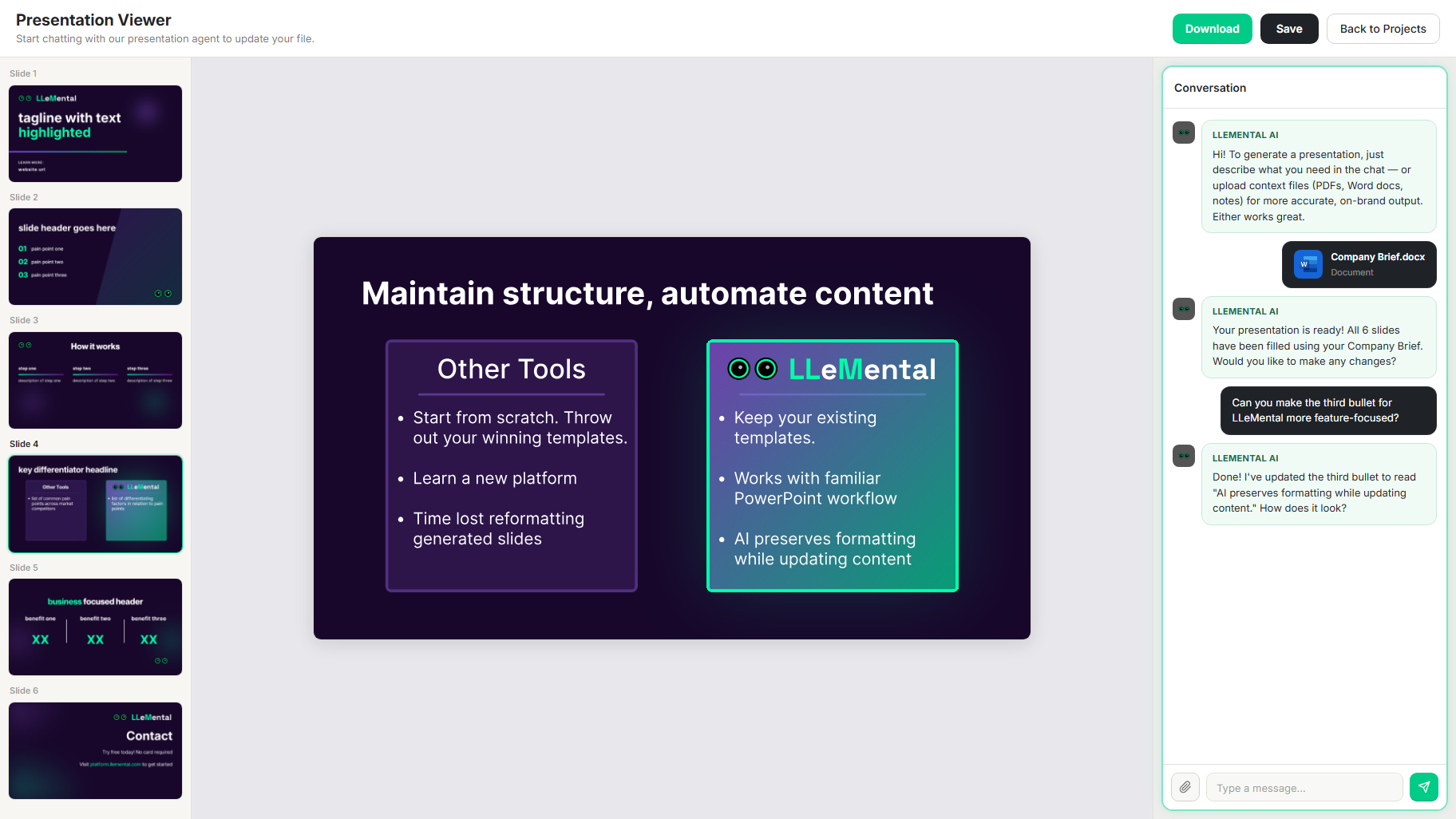
Step-by-Step: Creating Your First AI Presentation from an Existing Template
Here’s the complete workflow using LLeMental, starting from a .pptx file you already use.
Step 1: Connect with the LLeMental team
Schedule a demo with the LLeMental team to get access. Our team will walk you through the platform and set up your account tailored to your workflow.
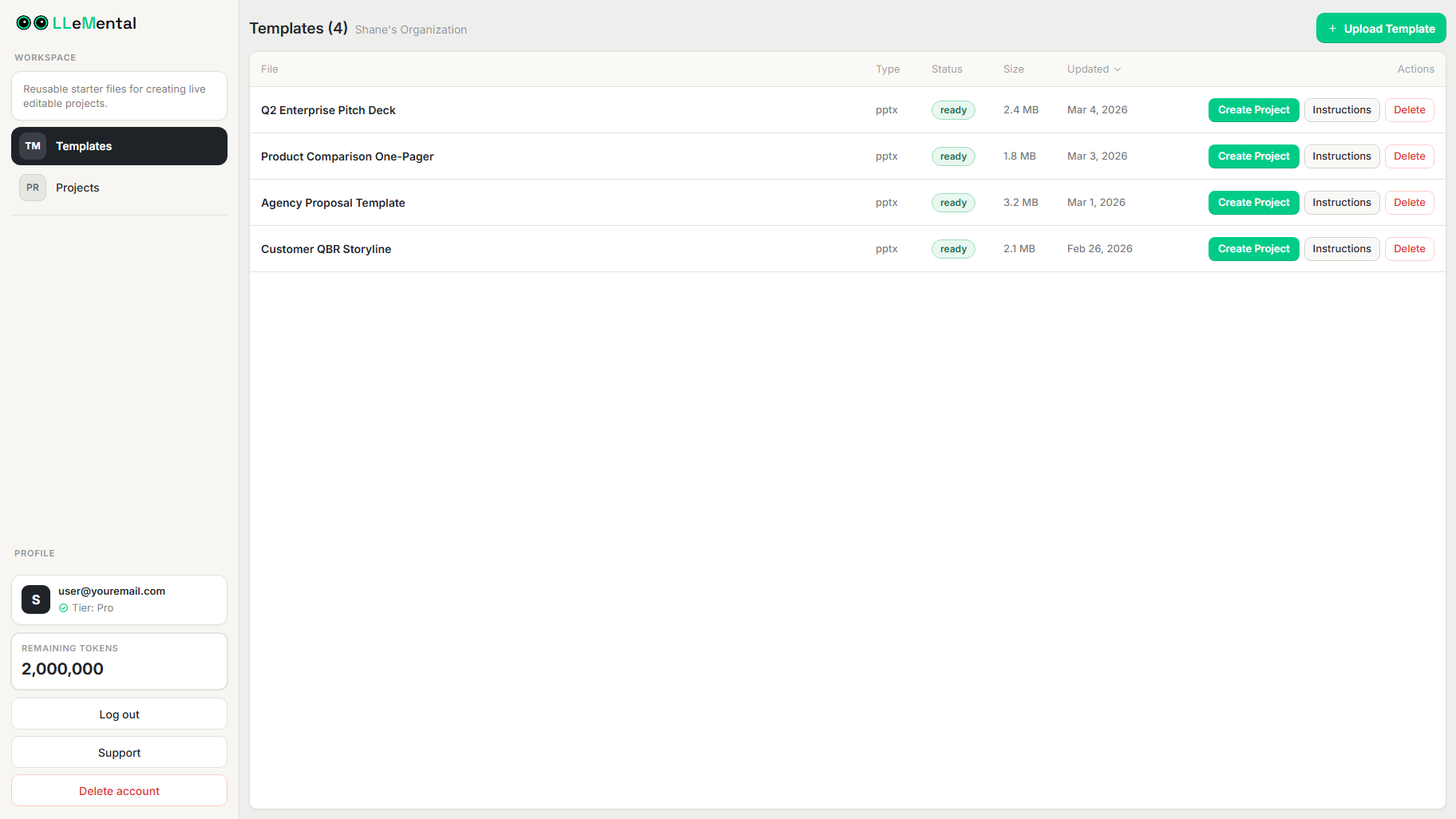
Step 2: Upload your PowerPoint template
From the Templates section, upload your .pptx file. If you have multiple templates (proposal deck, quarterly review, client onboarding presentation), upload each separately — they’re stored independently and can be managed by different team members.
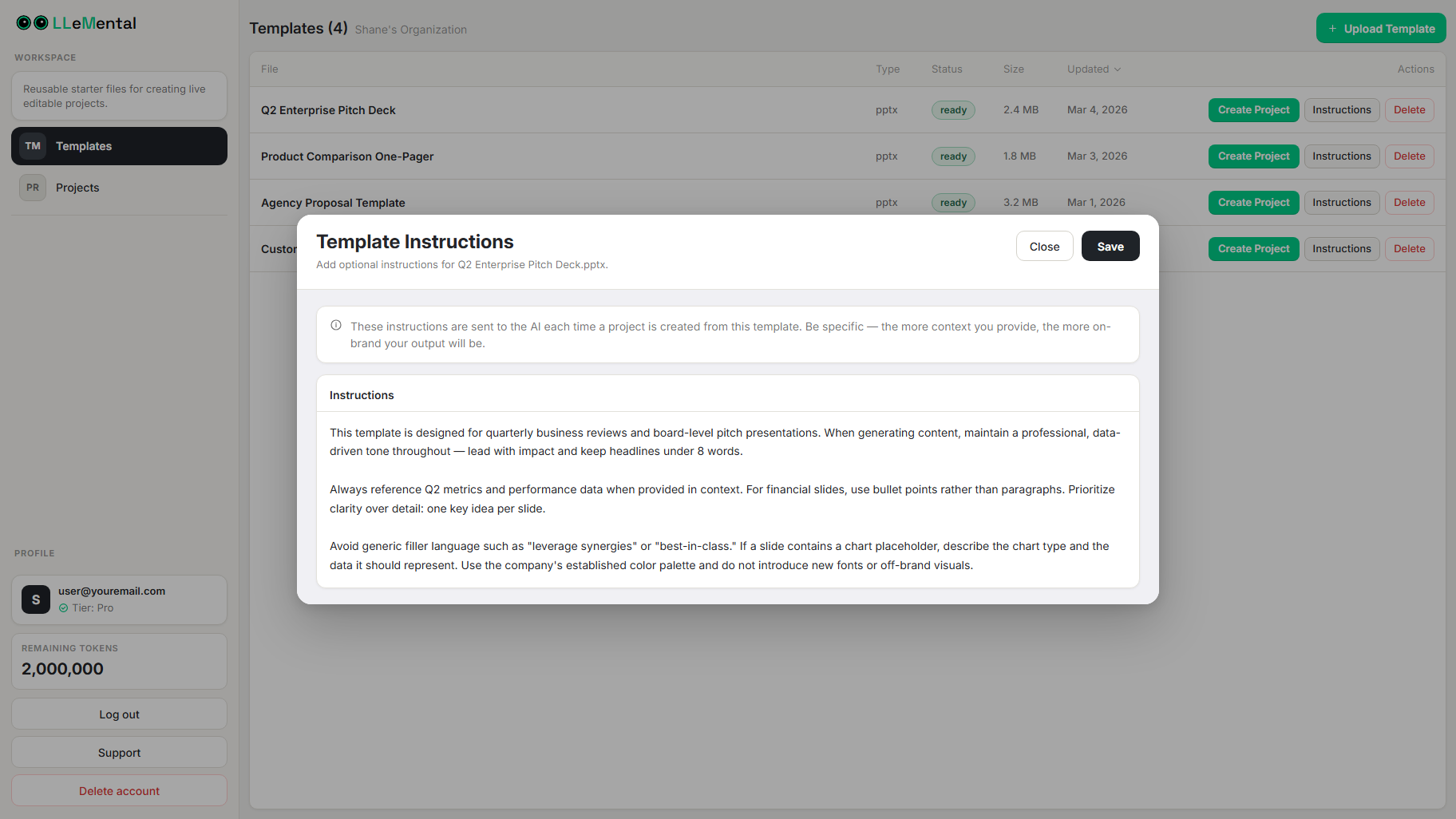
Step 3: Optionally add instructions to the template
Users can add optional Instructions to their template — a persistent global prompt that guides how content is generated every time that template is used. Instructions can define tone and voice, set formatting preferences, specify what to prioritize, or describe how specific sections should behave. This is optional and can be added, edited, or refined at any time.
Step 4: Create a Project & Generate
Create a new project from your template. Upload the source documents relevant to this specific presentation: the client brief, background research, scope of work, meeting notes. LLeMental processes these simultaneously and generates content across your slides, maintaining your structure.
Step 5: Download and review
Download the .pptx file. Open it in PowerPoint. Your template’s formatting is intact exactly. Review the generated content, make any adjustments in PowerPoint as you normally would, and deliver.
Repeat Use: Where Template Preservation Pays Off
The single-generation workflow above is useful, but the real advantage of template preservation becomes clear with repeat use.
Once a template is saved in LLeMental, every future generation of that template type takes seconds. An agency that creates new business pitch decks uploads their standard pitch template once. Every subsequent pitch — different client, different industry, different scope — uses that same template with different source documents. The AI generates customized content for each pitch while the template maintains perfect consistency across all of them.
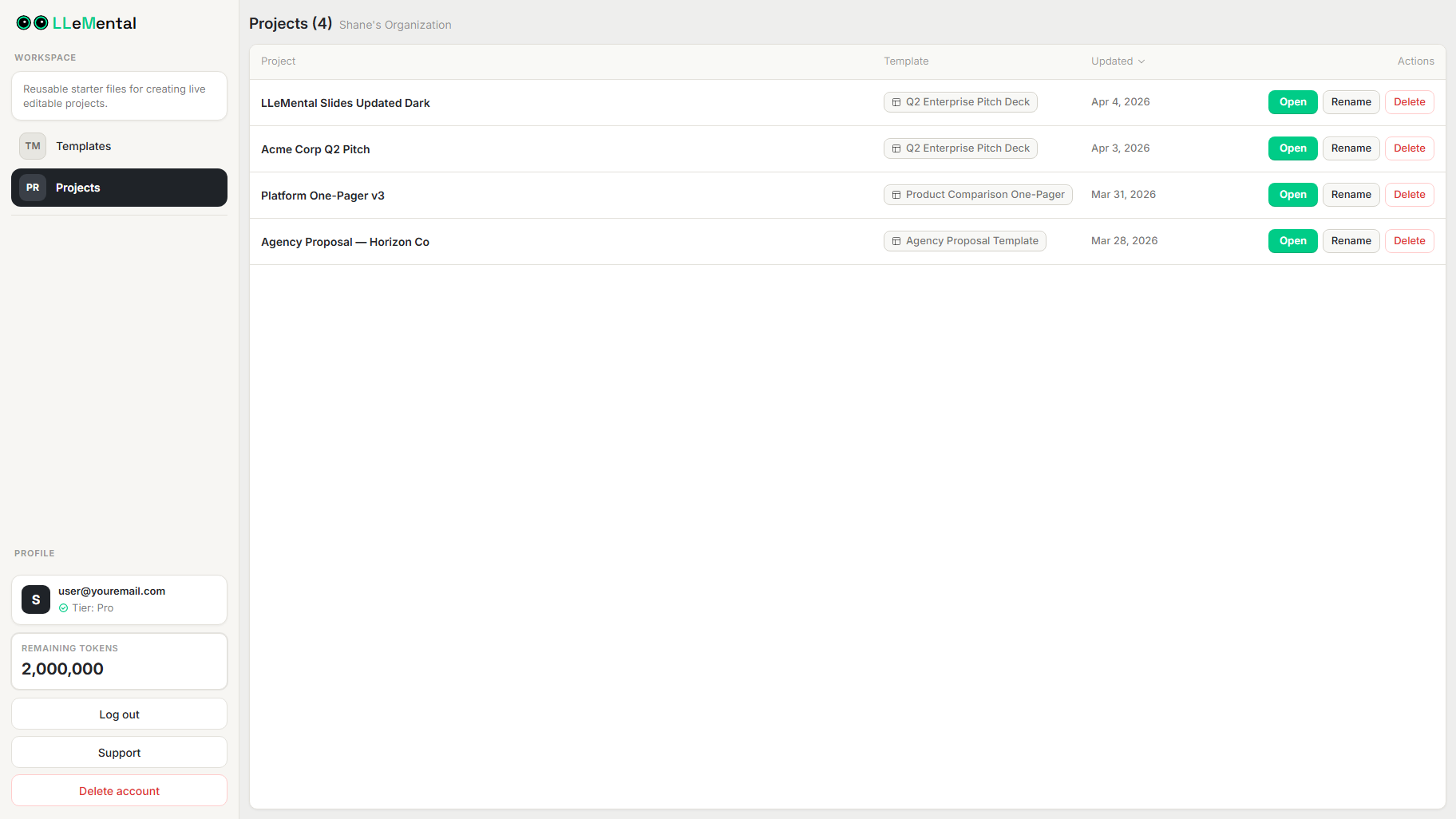
This is the scenario most “how to create an AI presentation” tutorials never reach. They show you how to generate one presentation. Template preservation shows you how to build a presentation system that generates the same presentation type reliably, indefinitely, with different content each time. Our guide to AI presentation makers for business teams covers this distinction in depth.
For teams generating 10–20 similar presentations per month — agency proposals, sales pitches, quarterly reviews — the time savings compound significantly. Where a single manual presentation might take 3–4 hours, LLeMental can automate this process. Over a month, that’s 30–80 hours recovered.
When From-Scratch AI Presentation Tools Are the Right Choice
Template preservation isn’t the right workflow for every scenario. From-scratch tools like Gamma or Canva genuinely serve specific use cases well.
If you’re creating a one-time presentation with no brand requirements — an internal brainstorm deck, a personal project, an exploratory outline — from-scratch tools are faster and require no setup. Gamma in particular is excellent for this: fast, visually modern, and good for presentations where you want AI to drive the structure rather than fill a predefined one.
If you don’t have established PowerPoint templates and want to start fresh with a modern aesthetic, from-scratch tools give you a wide range of styles to explore without any template investment.
The practical guide is straightforward: if you have existing templates your team uses and brand standards you follow, the template-first approach works better for your repeat use case. If you’re starting from nothing and creating one-off pieces, from-scratch AI tools are the faster path.
Other Tools and Their Honest Limitations
Microsoft Copilot in PowerPoint is the most capable option for enterprise users whose IT teams have configured branded templates in Microsoft 365. If your organization has done this setup, Copilot can generate directly into those templates. Outside that enterprise context, Copilot creates new content in standard PowerPoint layouts rather than your specific branded files.
Plus AI supports custom branded templates at the Enterprise tier through a setup process with their team. For standard subscriptions, it uses Plus AI’s template system. The custom Enterprise option is worth exploring for larger organizations, though it involves coordination with their team rather than self-service upload.
Gamma and Beautiful.ai don’t support existing template import. They excel at what they’re designed for — rapid creation of visually modern presentations from scratch — but that’s a different use case entirely.
Adobe Express can take a .pptx file as input but processes it as a content source, not a design template. The generated output uses Adobe Express formatting.
The honest summary: for standard business teams that need self-service template preservation without enterprise configuration requirements, LLeMental is currently the accessible option that addresses this use case directly.
Frequently Asked Questions
Q: Can I use any existing PowerPoint template, or are there compatibility requirements? A: LLeMental works with standard .pptx files. Templates with complex animations or embedded media may have some elements treated as static, but the core layouts, text placeholders, fonts, colors, and branding elements are all preserved. Word .docx support is in development.
Q: What happens if I update my brand template — do I need to update anything? A: No. When your brand guidelines change, update your master PowerPoint template and re-upload it to LLeMental. The platform analyzes the new version and maintains version control. This is the single-source advantage: your templates